
Onboard a Preconfigured NSD Package
After you onboard CNF or VNF packages to the Catalog, use the Launchpad Catalog Package Manager to onboard the DZS Cloud Orchestration preconfigured Ping-Pong NSD packages that you extracted in Download the Ping-Pong VNF.
-
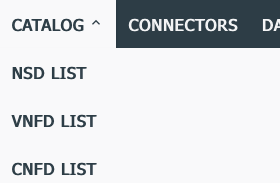
On the Launchpad Dashboard, click Catalog > NSD LIST.
-
Click the "onboard a catalog package" icon
 to onboard a catalog package. The IMPORT DESCRIPTOR pop-up appears.
 -
Type a File URL or navigate to the location of the NSD package. For example, navigate to the location where you unzipped the riftware-vnf-pingpong-images.zip archive and upload ping_pong_nsd.tar.gz.
-
Click IMPORT. Wait for the package to complete uploading.
The Ping-Pong NSD package onboards quickly, but the process could take several minutes if you are onboarding a more complex preconfigured package.
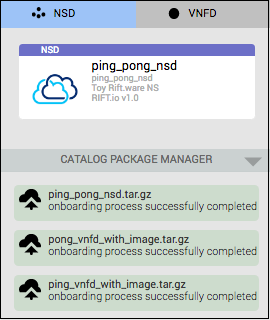
When a NSD package has been fully onboarded to the catalog, the new NSD appears in the Catalog Package Manager. For example:
-
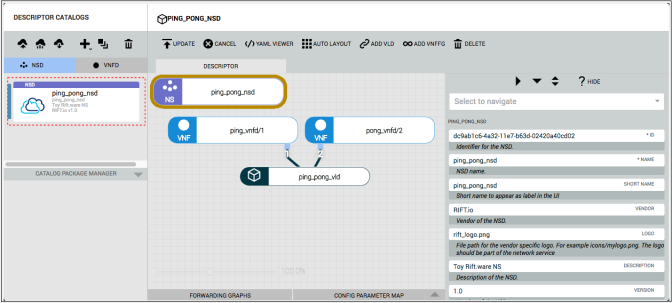
Open the NSD or drag it onto the canvas to automatically configure it.
For example, the following image shows that one new NSD is automatically configured with the onboarded CNFDs and virtual links and another new NSD is automatically configured with the onboarded VNFDs and virtual links:
Next steps
|
© 2020 DZS. All Rights Reserved |
Published on 8/10/2021, 4:30 PM |